DevOps Interview FAQ

SCM – Git


How do you resolve a merge conflict?
Identify conflicted files → edit markers (<<<<, ====, >>>>) → keep correct code → git add → git commit.
🔁 Git Reset
Moves your branch back to an old commit
Can remove commits from history
Used when you want to undo changes locally
↩️ Git Revert
Creates a new commit that undoes a previous commit
Does NOT delete history
Safe to use on shared branches
🔄 Git Rebase
Moves your commits on top of another branch
Makes commit history clean and straight
Rewrites history → avoid on shared branches
📦 Git Stash
Temporarily saves your uncommitted changes
Makes your working directory clean
You can apply changes back later
🍒 Git Cherry-pick
Picks one specific commit from another branch
Applies it to your current branch
Useful when you don’t want all commits
🔑 One-line Memory Trick (Interview Tip)
Reset → Go back
Revert → Undo safely
Rebase → Replay commits
Stash → Save for later
Cherry-pick → Copy one commit
Git branching strategies
Feature branching, GitFlow, Trunk-based development, Release branching.
Git branching strategies define how teams create, merge, and manage branches to develop, test, and release code efficiently.
Feature Branching
Each new feature is developed in its own branch.
Merged into
main/developvia Pull Request.✔ Easy collaboration, ✔ clean main branch
❌ Long-lived branches may cause conflicts
Feature branching is most common, GitFlow fits structured releases, and Trunk-based development is best for modern CI/CD pipelines.
What is merging?
Combining changes from one branch into another.
🧪 Step 1: Initialize Repository
mkdir git-merge-conflict-lab
cd git-merge-conflict-lab
git init
Rename default branch to main (if required):
git branch -m main
🧪 Step 2: Create a File on main
echo "Welcome to DevOps Lab" > app.txt
git add app.txt
git commit -m "Initial commit on main"
🧪 Step 3: Create feature Branch
git checkout -b feature
Modify the same line in app.txt:
echo "Welcome to Feature Branch DevOps Lab" > app.txt
git add app.txt
git commit -m "Updated app.txt in feature branch"
🧪 Step 4: Modify File on main
Switch back to main:
git checkout main
Modify the same line differently:
echo "Welcome to Main Branch DevOps Lab" > app.txt
git add app.txt
git commit -m "Updated app.txt in main branch"
🧪 Step 5: Merge feature into main (Conflict!)
git merge feature
❌ Output
Auto-merging app.txt
CONFLICT (content): Merge conflict in app.txt
Automatic merge failed; fix conflicts and then commit the result.
🔍 Step 6: Inspect the Conflict
cat app.txt
📄 Conflict Markers Explained
<<<<<<< HEAD
Welcome to Main Branch DevOps Lab
=======
Welcome to Feature Branch DevOps Lab
>>>>>>> feature
| Marker | Meaning |
<<<<<<< HEAD | Current branch (main) |
======= | Divider |
>>>>>>> feature | Incoming branch |
🛠 Step 7: Resolve the Conflict
Edit the file manually:
Welcome to DevOps Lab (Main + Feature)
Save the file.
✅ Step 8: Complete the Merge
git add app.txt
git commit -m "Resolved merge conflict between main and feature"
🔎 Step 9: Verify History
git log --oneline --graph --all
You should see:
Both branch commits
A merge commit
🧠 Interview Explanation (2–3 Lines)
A merge conflict occurs when two branches modify the same line of a file.
Git pauses the merge and asks the developer to manually resolve conflicts.
After resolving, we stage the file and complete the merge with a commit.
🧪 Bonus Commands (Interview Gold)
git status            # Shows conflicted files
git diff              # Shows conflict differences
git merge --abort     # Cancel merge
git rebase
It reapplies commits on top of another branch, creates linear history.
🧪 Step 1: Initialize Repository
mkdir git-rebase-lab
cd git-rebase-lab
git init
git branch -m main
🧪 Step 2: Create Initial Commit on main
echo "Welcome to DevOps Lab" > app.txt
git add app.txt
git commit -m "Initial commit on main"
🧪 Step 3: Create Feature Branch
git checkout -b feature
Modify the file:
echo "Welcome to Feature Branch DevOps Lab" > app.txt
git add app.txt
git commit -m "Feature: update app.txt"
🧪 Step 4: Add New Commit on main
Switch back to main:
git checkout main
Modify the same file differently:
echo "Welcome to Main Branch DevOps Lab" > app.txt
git add app.txt
git commit -m "Main: update app.txt"
Now branches have diverged ⛓️
🧪 Step 5: Rebase feature onto main
git checkout feature
git rebase main
❌ Conflict Happens
CONFLICT (content): Merge conflict in app.txt
🔍 Step 6: Inspect Conflict
cat app.txt
<<<<<<< HEAD
Welcome to Main Branch DevOps Lab
=======
Welcome to Feature Branch DevOps Lab
>>>>>>> Feature: update app.txt
🛠 Step 7: Resolve Conflict
Edit the file to:
Welcome to DevOps Lab (Main + Feature)
Save it.
▶️ Step 8: Continue Rebase
git add app.txt
git rebase --continue
Rebase completes successfully ✅
🔎 Step 9: Verify Linear History
git log --oneline --graph
You will see a clean, straight commit history (no merge commit).
🔄 Rebase vs Merge (Quick Comparison)
| Rebase | Merge |
| Rewrites history | Preserves history |
| Linear commit graph | Merge commits |
| Cleaner logs | More context |
| Avoid on shared branches | Safe everywhere |
git revert
It creates a new commit that undoes a previous commit.
🧪 Demo Lab: git revert
🔹 Step 1: Create a demo repository
mkdir git-revert-demo
cd git-revert-demo
git init
🔹 Step 2: Create a file and commit
echo "Version 1" > app.txt
git add app.txt
git commit -m "Initial commit"
🔹 Step 3: Make a second commit
echo "Version 2" >> app.txt
git add app.txt
git commit -m "Added Version 2"
🔹 Step 4: Make a third (wrong) commit ❌
echo "Buggy change" >> app.txt
git add app.txt
git commit -m "Bug introduced"
🔹 Step 5: Check commit history
git log --oneline
Example output:
c3f3c22 Bug introduced
b2a1d11 Added Version 2
a1b0c00 Initial commit
🔄 Reverting the Wrong Commit
🔹 Step 6: Revert the buggy commit
git revert c3f3c22
👉 Git opens VI editor with a default revert message.
In vi:
Revert "Bug introduced"

This reverts commit c3f3c22.
➡️ Press:
Esc → :wq → Enter
🔹 Step 7: Verify history again
git log --oneline
Output:
d4e5f66 Revert "Bug introduced"
c3f3c22 Bug introduced
b2a1d11 Added Version 2
a1b0c00 Initial commit
✅ Notice:
The bad commit is still there
A new revert commit cancels its effect
🔹 Step 8: Check file content
cat app.txt
Output:
Version 1
Version 2
✔️ Buggy change removed safely
git log
It shows commit history.
git checkout
Switching branches or restore files.
Git stash
Temporarily saves uncommitted changes.
🧪 Step 1: Initialize Repository
mkdir git-stash-lab
cd git-stash-lab
git init
git branch -m main
🧪 Step 2: Create Initial Commit
echo "Version 1 - DevOps App" > app.txt
git add app.txt
git commit -m "Initial commit"
🧪 Step 3: Make Changes (Do NOT Commit)
echo "Work in progress feature" >> app.txt
Check status:
git status
Output:
modified: app.txt
🧪 Step 4: Stash the Changes
git stash
Output:
Saved working directory and index state WIP on main
✔️ Your working directory is now clean.
git status
🧪 Step 5: Switch Branch Safely
git checkout -b hotfix
Make a hotfix change:
echo "Critical hotfix applied" >> app.txt
git add app.txt
git commit -m "Hotfix commit"
🧪 Step 6: Return to Main Branch
git checkout main
Your unfinished work is still safely stashed 🧳
🧪 Step 7: View Stash List
git stash list
Output:
stash@{0}: WIP on main: Initial commit
🧪 Step 8: Apply the Stash
Option 1️⃣ Apply and keep stash
git stash apply
Option 2️⃣ Apply and delete stash (most common)
git stash pop
Now check the file:
cat app.txt
Your work-in-progress changes are back ✅
🧪 Step 9: Commit Restored Changes
git add app.txt
git commit -m "Completed feature after stashing"
🧠 What git stash Actually Does
Saves modified tracked files
Does not create a commit
Stores changes in a stack
Useful for context switching
🔄 Common Git Stash Commands (Interview Must-Know)
git stash save "message"     # Named stash
git stash list               # View stashes
git stash show stash@{0}     # See changes
git stash drop stash@{0}     # Delete stash
git stash clear              # Delete all stashes
🚨 Important Notes (Interview Gold)
| Scenario | Behavior |
| Untracked files | ❌ Not stashed by default |
| Include untracked | git stash -u |
| Include ignored | git stash -a |
| Stash causes conflict | Yes, resolve like merge |
🧠 Interview-Ready Explanation (3 Lines)
Git stash temporarily saves uncommitted changes without creating a commit.
It allows developers to switch branches safely and resume work later.
Stashes are stored in a stack and can be applied or popped when needed.
🧪 Real DevOps Use Case
Pipeline fails → quick hotfix needed
Unfinished feature → stash changes
Fix production issue
Return and resume work
🧠 One-Line Purpose (Easy to Remember)
git reset→ Move HEAD backward (erase commits locally)git rebase→ Replay commits on a new base (rewrite history)git revert→ Undo a commit safely by creating a new commit
🔍 Comparison Table (Most Important)
| Feature | git reset | git rebase | git revert |
| Main goal | Undo commits | Clean / linear history | Safely undo changes |
| History rewritten | ✅ Yes | ✅ Yes | ❌ No |
| Deletes commits | ✅ Yes | ❌ (rewrites) | ❌ No |
| Creates new commit | ❌ No | ❌ No | ✅ Yes |
| Safe on shared branch | ❌ No | ❌ No | ✅ Yes |
| Typical usage | Local fixes | Feature branches | Production rollback |
Git cherry-pick
Applies a specific commit from another branch.
🧪 Step 1: Initialize Repository
mkdir git-cherrypick-lab
cd git-cherrypick-lab
git init
git branch -m main
🧪 Step 2: Create Initial Commit on main
echo "Base Application" > app.txt
git add app.txt
git commit -m "Initial commit"
🧪 Step 3: Create feature Branch with Multiple Commits
git checkout -b feature
Commit 1
echo "Feature A added" >> app.txt
git add app.txt
git commit -m "Add feature A"
Commit 2
echo "Feature B added" >> app.txt
git add app.txt
git commit -m "Add feature B"
Now feature has two commits, but we want only one.
🧪 Step 4: Switch Back to main
git checkout main
Check history:
git log --oneline --graph --all
🧪 Step 5: Cherry-Pick a Specific Commit 🍒
Copy the commit hash of “Add feature A”:
git cherry-pick <commit-hash>
Example:
git cherry-pick a1b2c3d
✅ What Just Happened?
Only one commit from
featureis appliedfeaturebranch remains unchangedmaingets a new commit with same changes
🧪 Step 6: Verify File Content
cat app.txt
Output:
Base Application
Feature A added
✔️ Feature B is NOT included
🧪 Step 7: Verify Commit History
git log --oneline --graph
You’ll see:
A new commit on
mainCommit hash is different from original
🔥 Cherry-Pick with Conflict (Quick Demo)
1️⃣ Modify the same line in main:
echo "Main branch change" > app.txt
git add app.txt
git commit -m "Main change"
2️⃣ Cherry-pick conflicting commit:
git cherry-pick <commit-hash>
❌ Conflict occurs → resolve like merge/rebase:
git add app.txt
git cherry-pick --continue
🛑 Abort Cherry-Pick (Important)
git cherry-pick --abort
🔄 Cherry-Pick vs Merge vs Rebase
| Command | Purpose |
| cherry-pick | Pick specific commit |
| merge | Merge entire branch |
| rebase | Replay all commits |
🧠 Interview-Ready Explanation (3 Lines)
Git cherry-pick applies a specific commit from one branch to another.
It is useful when only a bug fix or small change is needed.
Cherry-pick creates a new commit and should be used carefully to avoid duplicates.
✏️ How to Edit a Commit Message in Git
✅ Case 1: Edit the LAST commit message (Most Common)
👉 When?
You just committed
Commit is not pushed yet
✔️ Command
git commit --amend
Git opens an editor → change message → save & exit.
✔ Commit message updated
✔ Commit hash changes
✔ No new commit created
🧠 Interview Line
git commit --amendmodifies the most recent commit message.
⚠️ If Last Commit Is Already Pushed
You must force push (dangerous on shared branches):
git commit --amend
git push --force
❌ Avoid on main/master
✅ Case 2: Edit Last Commit Message (One Line, No Editor)
git commit --amend -m "New commit message"
✅ Case 3: Edit an OLDER commit message (Interactive Rebase)
👉 When?
Commit is not the latest
Commit is local or safe to rewrite
✔️ Command
git rebase -i HEAD~3
(Replace 3 with number of commits to go back)
🧾 Editor Opens Like This
pick a1 First commit
pick b2 Second commit
pick c3 Third commit
Change pick → reword for the commit you want:
pick a1 First commit
reword b2 Second commit
pick c3 Third commit
Save & exit.
Git will now ask you to edit that commit message.
⚠️ After Rewriting History
If already pushed:
git push --force
❌ Case 4: DO NOT Do This
git reset --hard
❌ This loses data
❌ Not meant for message editing
🧠 Quick Decision Table
| Situation | Command |
| Last commit, not pushed | git commit --amend |
| Last commit, pushed | git commit --amend + force push |
| Older commit | git rebase -i |
| Shared branch | ❌ Don’t edit |
🧪 Real DevOps Use Case
Bug fix committed in
featureProduction needs only that fix
Cherry-pick the commit to
releaseormainTrigger CI/CD pipeline 🚀
Git upstream
Default remote branch for pull/push operations.
Git pull request
Request to merge code changes into another branch.
Git workflow
Code → commit → push → pull request → review → merge → deploy.
Build Tool – Maven
Maven lifecycle
validate → compile → test → package → verify → install → deploy
Maven build outputs
JAR/WAR files, compiled .class files, test reports, logs.
CI – Jenkins

stage('Update and Commit Manifest') {
    steps {
        script {
            // Clone the repository containing Kubernetes manifests
            sh 'git clone <URL_of_Manifest_Repo>'
            dir('k8s-manifest-repo') {
                // Use sed, a file editor, or a tool like kustomize to update the image tag
                // Example using sed to update the image in a deployment.yaml file:
                sh "sed -i 's|image:.*|image: your-registry/your-image:BUILD_NUMBER|g' deployment.yaml"

                // Commit and push the changes back to the Git repository
                sh 'git config user.email "jenkins@example.com"'
                sh 'git config user.name "Jenkins CI"'
                sh 'git add .'
                sh 'git commit -m "Update application image to version BUILD_NUMBER"'
                sh 'git push origin main'
            }
        }
    }
}
Groovy-supported file
Jenkinsfile
Jenkins shared libraries
Reusable Groovy code to avoid duplication and standardize pipelines.
Choice parameters
Dropdown options for user input during job execution.
Git webhooks
Configured in Git repo → triggers Jenkins on push/PR events.
Jenkins master & agent
Master controls jobs; agents execute builds.
Jenkins + Docker integration
Run builds inside Docker containers or build Docker images.
Artifact archiving using nexus/jfrog
Stores build outputs for later use or deployment.
Stuck Jenkins job
Job waiting due to resource lock, dead agent, or hung process.
Jenkins logs location
/var/log/jenkins/jenkins.log
RBAC
Controls user permissions based on roles.
Jenkins credentials handling
Stored securely in Jenkins Credentials Store.
Common Jenkins errors
Docker permission issue (chmod 666 /var/run/docker.sock)
Git auth failure (wrong token/SSH key)
Env variables not loaded
Command not found (Docker/Trivy)
Disk/CPU/memory full
Agent offline
Pipeline syntax error
Firewall/network issues
1️⃣ Jenkins job is stuck in “Pending” state. Why?
Answer:
This usually happens when no executor is available on the Jenkins node.
The agent may be offline or labels may not match.
Check Manage Nodes → Executors → Node status.
2️⃣ Build fails with permission denied error. How do you fix it?
Answer:
Jenkins runs as a specific OS user (jenkins).
That user may not have execute/write permission.
Fix using chown, chmod, or run required commands via sudo.
3️⃣ Jenkins build works manually but fails in pipeline. Why?
Answer:
The environment variables differ between shell and Jenkins.
Jenkins runs in a non-interactive shell.
Explicitly define paths, credentials, and environment variables in pipeline.
4️⃣ Jenkins is slow or UI hangs. What are common reasons?
Answer:
Insufficient CPU/RAM on Jenkins server.
Too many plugins or old plugin versions.
Check JVM memory, disable unused plugins, and restart Jenkins.
5️⃣ Git checkout fails with authentication error.
Answer:
Credentials may be missing or incorrect in Jenkins.
SSH key or token might be expired.
Verify credentials in Manage Credentials and repo access.
6️⃣ Jenkins agent is offline. How do you troubleshoot?
Answer:
Check network connectivity between master and agent.
Verify Java version and agent service status.
Reconnect agent and check logs on both sides.
7️⃣ Pipeline fails with command not found.
Answer:
The required tool may not be installed on the agent.
Or PATH is not set correctly.
Install the tool or configure it under Global Tool Configuration.
8️⃣ Jenkins job fails after plugin update.
Answer:
Plugin update may be incompatible with Jenkins core.
Some pipelines break due to deprecated syntax.
Rollback plugin or upgrade Jenkins to a compatible version.
9️⃣ Jenkins build fails with disk space error.
Answer:
Jenkins workspace or /var/lib/jenkins is full.
Old builds, logs, or Docker images consume space.
Clean workspace, rotate logs, or increase disk size.
🔟 Jenkins pipeline is not triggering automatically.
Answer:
Webhook may not be configured or failing.
SCM polling or webhook URL may be incorrect.
Check webhook delivery status and Jenkins trigger settings.
GitHub Actions

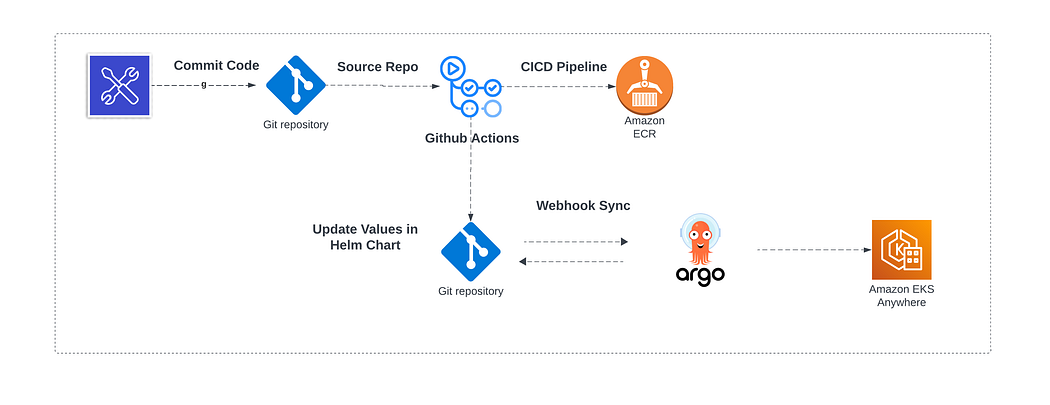
GitHub Actions vs Jenkins
GitHub Actions is cloud-native; Jenkins requires self-management.
Workflow
YAML file defining automation steps.
Runner
Machine that executes workflows.
GitHub-hosted vs self-hosted runners
GitHub-hosted: managed, limited control.
Self-hosted: full control, scalable.
Workflow triggers
Push, pull request, schedule, manual, release.
Workflow storage
.github/workflows/*.yml
Scheduled workflow
Runs on cron schedule.
Scaling runners
Add more self-hosted runners or autoscale. Autoscaling GitHub Actions runners on EKS is achieved using Actions Runner Controller, which dynamically creates and deletes Kubernetes runner pods based on CI workload demand.
Securing self-hosted runners
Isolated VMs, least privilege, rotate tokens.
Secrets & variables
Encrypted values for credentials/configs.
1️⃣ Q: Pipelines are triggered but stuck in “Waiting for runner”. What happened?
Answer:
All available runners were exhausted or self-hosted runners went offline.
No executor was available to pick up jobs.
Fix by restarting runners or adding more capacity; prevent using autoscaling and monitoring.
2️⃣ Q: How can a forked PR trigger a production deployment?
Answer:
Misuse of pull_request_target allowed forked PRs to access secrets.
This caused unauthorized deployments.
Fix by disabling pull_request_target, rotating secrets, and enforcing least privilege.
3️⃣ Q: Why did a workflow start failing without any code change?
Answer:
The workflow used a floating action version like @main.
Upstream action updates broke compatibility.
Fix by pinning action versions and never using floating tags.
4️⃣ Q: How do secrets get leaked in GitHub Actions logs?
Answer:
Secrets were echoed or passed to verbose commands.
Masking was bypassed unintentionally.
Fix by rotating secrets, removing logs, and using GitHub secret masking or OIDC.
5️⃣ Q: Why did the CI pipeline suddenly become very slow?
Answer:
Dependencies were re-downloaded on every run.
Caching was missing or misconfigured.
Fix by using actions/cache and prevent by monitoring build duration trends.
6️⃣ Q: Why did production deploy twice for a single commit?
Answer:
Workflow was triggered on both push and pull_request.
No conditional filtering was applied.
Fix by adding if: conditions and separating CI and CD workflows.
7️⃣ Q: Why did a self-hosted runner stop responding?
Answer:
Disk was exhausted due to Docker images and artifacts.
The runner was long-lived with no cleanup.
Fix by cleaning workspace and pruning images; prevent with ephemeral runners.
8️⃣ Q: Why do AWS deployments fail randomly from GitHub Actions?
Answer:
Static AWS credentials expired or IAM trust policy was misconfigured.
STS assume-role calls failed intermittently.
Fix by switching to GitHub OIDC and avoiding static credentials.
9️⃣ Q: Why does deployment fail only on the main branch?
Answer:
Main branch had environment protection rules enabled.
Required approvals were missing.
Fix by adding reviewers and documenting environment rules clearly.
🔟 Q: What do you do if GitHub Actions goes down during a release?
Answer:
This is a platform outage beyond user control.
Pause releases and use manual or backup CI/CD execution.
Prevent impact by having a disaster recovery plan and secondary CI tool.
Containerization – Docker
Docker architecture
Client → Docker Daemon → Images → Containers → Registry.
Docker architecture consists of several key components:
Docker Client: Issues commands to the Docker daemon via a command-line interface (CLI).
Docker Daemon (dockerd): Runs on the host machine, managing Docker objects like images, containers, networks, and volumes.
Docker Images: Read-only templates used to create Docker containers.
Docker Containers: Lightweight, portable, and executable instances created from Docker images.
Docker Registry: Stores and distributes Docker images; Docker Hub is a popular public registry.
Docker Compose: A tool for defining and running multi-container Docker applications using a YAML file.
Docker Networking: Allows containers to communicate with each other and with non-Docker environments.
Dockerfile
A Dockerfile is a text file that contains step-by-step instructions to build a Docker image.
It defines the base image, application dependencies, configuration, and startup command.
Dockerfile contents
FROM, RUN, COPY, CMD, ENTRYPOINT, EXPOSE.
CMD vs ENTRYPOINT
CMD is a command that can be overridden when running the container.
ENTRYPOINT defines the main executable of the container and is not overridden unless explicitly specified.
ADD vs COPY
COPY is simple copy command, ADD supports url and tar extraction.
Bind mount vs volume (in docker)
Bind: host path dependent.
Volume: Docker-managed, portable.
Backup Docker images
docker save image > backup.tar
Docker networking types
Bridge, host, none, overlay.
Docker logs
docker logs <container>
Container exiting immediately
Check logs, CMD/ENTRYPOINT, missing foreground process.
Security & Monitoring
Trivy
Scans images/filesystems for vulnerabilities.
SonarQube
Analyzes code quality: bugs, vulnerabilities, coverage.
Prometheus & Grafana
Prometheus collects metrics; Grafana visualizes dashboards.
Kubernetes / EKS
Identify EKS cluster per environment
By cluster name, tags, kubeconfig context.
RBAC in EKS
IAM roles mapped via aws-auth ConfigMap.
Access prod cluster
Via approved IAM role and kubeconfig.
Who deploys to prod?
DevOps/SRE team after approvals.
Deployment types in kubernetes
Rolling update
Gradually replaces pods with zero downtime.
1️⃣ Rolling Update (Default)
Pods are updated gradually by creating new pods and terminating old ones.
Ensures zero or minimal downtime during deployment.
Controlled using maxSurge and maxUnavailable.
2️⃣ Recreate
All existing pods are terminated first, then new pods are created.
Causes application downtime during deployment.
Used when old and new versions cannot run together.
3️⃣ Blue-Green Deployment
Two environments exist: Blue (current) and Green (new).
Traffic is switched to the new version after validation.
Provides instant rollback and zero downtime.
4️⃣ Canary Deployment
New version is released to a small percentage of users first.
Traffic is gradually increased based on monitoring results.
Reduces risk by early detection of issues.
5️⃣ A/B Testing (Advanced)
Different versions are served to different user groups.
Used to compare performance or behavior of features.
Requires advanced traffic routing (Ingress/Istio).
Namespace
Logical isolation in cluster.
Default namespaces
default, kube-system, kube-public, kube-node-lease
Common Deployment Errors in EKS (Interview-Focused Q&A)
1️⃣ Pods stuck in Pending state
Answer: Usually caused by insufficient node resources, wrong node selector, or missing IAM permissions.
Check with kubectl describe pod and verify node capacity and taints.
2️⃣ CrashLoopBackOff after deployment
Answer: Application is crashing due to wrong command, config, or missing environment variables.
Check logs using kubectl logs <pod>.
3️⃣ ImagePullBackOff / ErrImagePull
Answer: Incorrect image name/tag or missing access to private registry (ECR).
Fix image reference or attach correct IAM role to worker nodes.
4️⃣ Service not accessible externally
Answer: LoadBalancer not created or security group/port not opened.
Verify Service type, target ports, and AWS security group rules.
5️⃣ Deployment succeeds but app not reachable inside cluster
Answer: Service selector labels do not match pod labels.
Ensure spec.selector in Service matches pod labels exactly.
6️⃣ Forbidden errors while deploying resources
Answer: Caused by missing Kubernetes RBAC or IAM permissions.
Check role bindings and aws-auth ConfigMap in Amazon EKS.
7️⃣ Pods failing due to ConfigMap or Secret errors
Answer: ConfigMap/Secret not created or referenced incorrectly.
Verify resource existence and correct key names.
8️⃣ Ingress not working
Answer: Ingress Controller (ALB/NGINX) not installed or misconfigured.
Ensure controller is running and annotations are correct.
9️⃣ Deployment fails due to existing role or resource name
Answer: Role or resource with same name already exists.
Follow naming conventions and clean up unused resources.
🔟 Application works in dev but fails in prod EKS
Answer: Environment-specific configs, IAM roles, or network policies differ.
Always validate prod RBAC, security groups, and secrets.
Kubernetes Architecture
control plane components
a) kube-apiserver - Entry point to the cluster,Validates & processes requests
b) etcd - Distributed key-value database Stores entire cluster state (Pods, Services, Secrets and ConfigMaps)
⚠️ If etcd is lost = cluster is lost c) kube-scheduler - Decides which node runs a Pod
d) kube-controller-manager: Runs multiple controllers: (Node Controller, ReplicaSet Controller, Deployment Controller and Endpoint Controller) 👉 Ensures desired state = actual state
e) cloud-controller-manager (Cloud only)
Used in EKS / AKS / GKE
Manages:
LoadBalancers
Volumes
Node lifecycle
Worker Nodes
Worker nodes run your applications.
a) kubelet
Agent running on each node
Talks to API Server
Ensures containers are running as defined in PodSpec
b) Container Runtime
Runs containers:
containerd (most common)
CRI-O
Docker (deprecated)
c) kube-proxy
Handles networking & service routing
Implements Service types
d) Pods
Smallest deployable unit
One or more containers
Shared:
Network
Storage
Example: Deploy an application
User runs:
kubectl apply -f deploy.yml
Request → kube-apiserver
State saved in etcd
Scheduler selects node
kubelet on selected node:
Pulls image
Starts container
kube-proxy enables networking
✔️ Pod is now running
AWS CODE PIPELINE
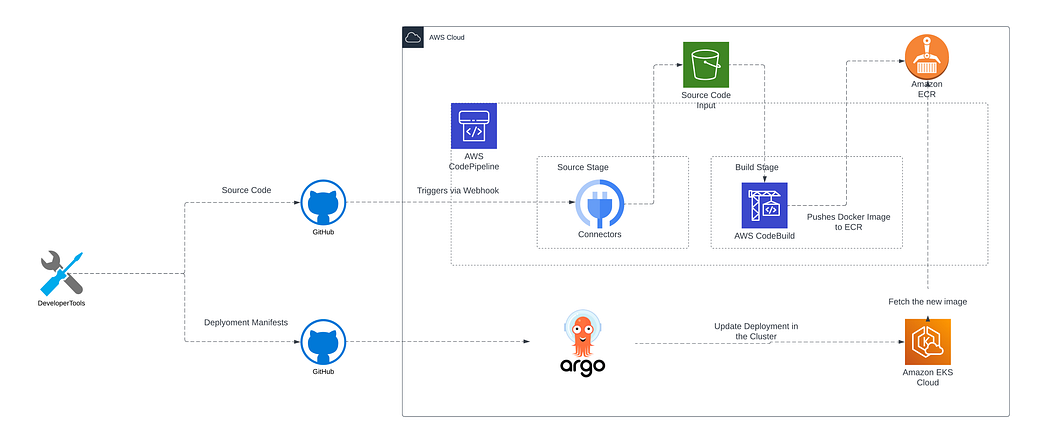
🧨 Case 1: CodePipeline Suddenly Stops Triggering
Symptoms
GitHub commit pushed
CodePipeline not triggered
No execution history
Root Cause
Webhook deleted or OAuth token expired
GitHub permission revoked
Fix
Recreate webhook
Reauthorize GitHub connection
Prevention
Monitor webhook health
Prefer AWS CodeStar Connections
🧨 Case 2: CodeBuild Fails with ACCESS_DENIED
Symptoms
Build fails immediately
IAM permission errors in logs
Root Cause
CodeBuild service role missing permissions
New AWS service added without policy update
Fix
Update IAM role with required permissions
Validate least-privilege access
Prevention
Use IAM policy reviews
Version-control IAM policies
🧨 Case 3: Builds Randomly Fail with OutOfMemoryError
Symptoms
Builds fail intermittently
Java / Node / Docker builds crash
Root Cause
CodeBuild compute type too small
Docker builds consume high memory
Fix
Increase compute type (e.g.,
BUILD_GENERAL1_LARGE)Optimize build steps
Prevention
Right-size CodeBuild environments
Monitor CloudWatch metrics
🧨 Case 4: CodePipeline Execution Hangs at Deploy Stage
Symptoms
Pipeline stuck at CodeDeploy
No failure, no progress
Root Cause
EC2 instances unhealthy
CodeDeploy agent not running
Fix
Restart CodeDeploy agent
Fix instance health checks
Prevention
CloudWatch alarms on agent health
Auto-healing via ASG
🧨 Case 5: Production Deployed with Wrong Artifact Version
Symptoms
Older code appears in production
Rollback required
Root Cause
Artifact overwritten in S3
Same artifact name reused
Fix
Enable artifact versioning
Re-run pipeline with correct version
Prevention
Use immutable artifact versioning
Separate build & deploy buckets
🧨 Case 6: CodeBuild Cannot Pull Private Docker Image
Symptoms
Docker build fails
pull access denied
Root Cause
Missing ECR permissions
Docker login not performed
Fix
Add
ecr:GetAuthorizationTokenAuthenticate to ECR in buildspec
Prevention
Standardize ECR auth steps
Validate IAM role permissions
🧨 Case 7: Pipeline Works in Dev but Fails in Prod
Symptoms
Dev pipeline success
Prod pipeline fails
Root Cause
Different IAM roles or VPC configs
Missing NAT Gateway in prod
Fix
Align environment configs
Add NAT or VPC endpoints
Prevention
Environment parity
Infrastructure as Code (Terraform/CDK)
🧨 Case 8: CodeBuild Times Out During Build
Symptoms
Build abruptly stops
Timeout exceeded
Root Cause
Long-running tests
Default timeout too low
Fix
Increase build timeout
Optimize test execution
Prevention
Parallelize tests
Monitor build duration
🧨 Case 9: Secrets Exposed in CodeBuild Logs
Symptoms
DB passwords visible in logs
Security alert raised
Root Cause
Secrets echoed in buildspec
No masking
Fix
Rotate secrets
Move secrets to AWS Secrets Manager
Prevention
Never echo secrets
Use parameter store / secrets manager
🧨 Case 10: CodePipeline Failed During AWS Regional Outage
Symptoms
All pipelines failing
AWS service health alert
Root Cause
Regional AWS outage
CodePipeline dependency unavailable
Fix
Pause deployments
Manual deployment if needed
Prevention
Multi-region DR strategy
Backup CI/CD solution
ARGOCD

Argo CD – Interview Questions
1️⃣ What is Argo CD?
Answer:
Argo CD is a GitOps tool for Kubernetes.
It deploys applications from Git repositories.
Git is the single source of truth.
2️⃣ What problem does Argo CD solve?
Answer:
Manual Kubernetes deployments are error-prone.
Argo CD automates deployments from Git.
It keeps cluster state in sync with Git.
3️⃣ What is GitOps?
Answer:
GitOps means managing infrastructure using Git.
All changes go through Git commits.
Argo CD applies Git changes to Kubernetes.
4️⃣ How does Argo CD work?
Answer:
Argo CD continuously monitors Git repositories.
It compares Git state with cluster state.
If different, it syncs the application.
5️⃣ What is an Application in Argo CD?
Answer:
An Application is a CRD in Argo CD.
It defines source repo, path, and destination cluster.
It represents one deployed app.
6️⃣ What is Sync in Argo CD?
Answer:
Sync means applying Git changes to the cluster.
It can be manual or automatic.
Auto-sync keeps apps always up to date.
1️⃣ Explain Argo CD internal architecture
Answer:
Argo CD consists of API Server, Repository Server, Application Controller, and UI.
The repo-server generates manifests from Git or Helm.
The application-controller compares desired vs live state and performs sync.
2️⃣ How does Argo CD detect and handle drift?
Answer:
Argo CD continuously compares live cluster state with Git state.
Any manual change creates drift.
Auto-sync can revert drift automatically.
3️⃣ What is the difference between Sync and Refresh?
Answer:
Refresh only re-evaluates live vs desired state.
Sync actually applies changes to the cluster.
Refresh is non-intrusive; sync modifies resources.
4️⃣ Explain automated sync policies
Answer:
Auto-sync applies changes automatically.
Options include prune and self-heal.
Prune deletes removed resources; self-heal fixes drift.
5️⃣ How does Argo CD handle secrets securely?
Answer:
Argo CD never stores secrets in Git directly.
Secrets are managed via Kubernetes Secrets, Vault, or Sealed Secrets.
Argo CD only references decrypted secrets at runtime.
6️⃣ How do you deploy the same app to multiple environments?
Answer:
Use separate Git paths or branches per environment.
Or use ApplicationSet with generators.
Values are overridden per environment.
7️⃣ What is ApplicationSet and why is it important?
Answer:
ApplicationSet automates creation of multiple applications.
It uses generators like Git, List, or Cluster.
It enables large-scale multi-cluster deployments.
8️⃣ How does Argo CD work with Helm?
Answer:
Argo CD can render Helm charts using values files.
Helm rendering is done in repo-server.
Argo CD manages lifecycle, not Helm CLI.
9️⃣ What happens if Git is down?
Answer:
Running apps continue without impact.
No new syncs or refreshes occur.
Argo CD resumes when Git is available.
🔟 How do you control access in Argo CD?
Answer:
Using RBAC with roles and policies.
Integrated with SSO (OIDC, LDAP).
Access can be restricted per app or project.
1️⃣1️⃣ What are Argo CD Projects?
Answer:
Projects group applications logically.
They define allowed repos, destinations, and resources.
Used for multi-team isolation.
1️⃣2️⃣ How do you manage multi-cluster deployments?
Answer:
Register clusters in Argo CD.
Use ApplicationSet with cluster generator.
Single Argo CD can manage multiple clusters.
1️⃣3️⃣ How does Argo CD perform rollback?
Answer:
Rollback is done by reverting Git commit.
Argo CD syncs to previous commit state.
Git history acts as audit trail.
1️⃣4️⃣ How do you handle CRDs in Argo CD?
Answer:
CRDs must be applied before CRs.
Use sync waves or separate applications.
Pre-sync hooks are also used.
1️⃣5️⃣ What are Sync Hooks?
Answer:
Hooks run at different sync phases.
Examples: PreSync, Sync, PostSync.
Used for migrations or validations.
1️⃣6️⃣ What is Sync Wave?
Answer:
Sync wave controls resource deployment order.
Lower wave number deploys first.
Used for dependencies like namespaces or CRDs.
1️⃣7️⃣ How do you prevent accidental deletes?
Answer:
Disable auto-prune.
Use project-level restrictions.
Enable manual sync for production.
1️⃣8️⃣ What is the difference between prune and delete?
Answer:
Prune removes resources not in Git.
Delete removes entire application.
Prune is controlled via sync policy.
How do you upgrade Argo CD safely?
Answer:
Backup Argo CD config and CRDs.
Upgrade via manifests or Helm.
Verify repo-server and controller compatibility.
How do you troubleshoot Argo CD sync failures?
Answer:
Check application status and events.
Review repo-server and controller logs.
Verify Git access, RBAC, and manifest errors.
What is Drift in Argo CD?
Answer:
Drift occurs when cluster state changes manually.
It differs from Git-defined state.
Argo CD detects and corrects drift.
How do you access Argo CD UI?
Answer:
By default through a Kubernetes service.
Usually exposed via NodePort, LoadBalancer, or Ingress.
Login uses admin credentials initially.
🔹 Helm – Interview Questions
9️⃣ What is Helm?
Answer:
Helm is a package manager for Kubernetes.
It simplifies application deployment.
Helm packages are called charts.
🔟 What is a Helm Chart?
Answer:
A Helm Chart is a collection of YAML templates.
It defines Kubernetes resources for an app.
It is reusable and configurable.
1️⃣1️⃣ What are Helm Releases?
Answer:
A release is a deployed instance of a chart.
Each install creates one release.
Releases are versioned.
1️⃣2️⃣ What is values.yaml?
Answer:values.yaml contains configurable values.
It customizes chart deployment.
Templates use these values.
1️⃣3️⃣ What is Helm Template?
Answer:
Helm templates are Kubernetes YAML files.
They contain variables and logic.
Values are injected during deployment.
1️⃣4️⃣ How do you install a Helm chart?
Answer:
Using helm install.
It installs chart into Kubernetes.
Creates a release.
Example:
helm install myapp ./mychart
1️⃣5️⃣ How do you upgrade a Helm release?
Answer:
Using helm upgrade.
It updates the existing release.
Keeps release history.
1️⃣6️⃣ What is Helm Rollback?
Answer:
Rollback restores previous release version.
Used when deployment fails.
Very useful in production.
1️⃣7️⃣ Difference between Helm and kubectl?
Answer:
kubectl applies raw YAML files.
Helm manages versions and templates.
Helm is better for complex apps.
🔹 Argo CD vs Helm (Junior-Level)
1️⃣8️⃣ Can Argo CD work with Helm?
Answer:
Yes, Argo CD supports Helm charts.
It pulls charts from Git or Helm repo.
Very common in real projects.
1️⃣9️⃣ Helm vs Argo CD – difference?
Answer:
Helm is a deployment tool.
Argo CD is a GitOps continuous delivery tool.
They are often used together.
2️⃣0️⃣ Which one deploys to Kubernetes directly?
Answer:
Helm deploys directly using CLI.
Argo CD deploys by syncing Git state.
Argo CD automates Helm deployments.
2️⃣1️⃣ Explain Helm architecture and components
Answer:
Helm consists of the Helm CLI and Kubernetes API.
Charts are rendered locally into Kubernetes manifests.
Releases are stored as Kubernetes secrets or configmaps.
2️⃣2️⃣ How does Helm manage state?
Answer:
Helm stores release metadata in the cluster.
Each release version is saved as a secret/configmap.
This enables rollback and history tracking.
2️⃣3️⃣ Difference between helm install and helm upgrade
Answer:install creates a new release.upgrade modifies an existing release.
Upgrade maintains version history.
2️⃣4️⃣ What is helm upgrade --install used for?
Answer:
It installs if release doesn’t exist.
Upgrades if release already exists.
Commonly used in CI/CD pipelines.
2️⃣5️⃣ Explain Helm values precedence order
Answer:
Command-line --set has highest priority.
Then custom values files.
Default values.yaml has lowest priority.
2️⃣6️⃣ How does Helm handle rollbacks?
Answer:
Rollback reverts to a previous release revision.
It uses stored release metadata.
No need to reapply YAML manually.
2️⃣7️⃣ What is helm template and when is it used?
Answer:
It renders manifests locally without deploying.
Used for debugging templates.
Useful in GitOps workflows.
2️⃣8️⃣ How do you manage secrets in Helm?
Answer:
Avoid storing secrets in plain values.yaml.
Use external secret managers or sealed secrets.
Reference secrets during runtime.
2️⃣9️⃣ What are Helm hooks?
Answer:
Hooks execute actions at lifecycle events.
Examples: pre-install, post-upgrade.
Used for DB migrations or checks.
3️⃣0️⃣ How do you control resource creation order in Helm?
Answer:
Helm does not guarantee strict order.
Hooks or separate charts are used.
For CRDs, install before dependent resources.
3️⃣1️⃣ What is the purpose of Chart.yaml?
Answer:
Defines chart metadata.
Includes name, version, and dependencies.
Required for every Helm chart.
3️⃣2️⃣ Explain Helm chart dependencies
Answer:
Charts can depend on other charts.
Defined in Chart.yaml.
Fetched using helm dependency update.
3️⃣3️⃣ What is the difference between Helm v2 and v3?
Answer:
Helm v2 used Tiller (server-side).
Helm v3 removed Tiller.
Improved security and simplicity.
3️⃣4️⃣ How do you package and share Helm charts?
Answer:
Use helm package to create .tgz.
Upload to Helm repo or OCI registry.
Teams consume charts centrally.
3️⃣5️⃣ How do you troubleshoot Helm deployment failures?
Answer:
Check helm status and history.
Use helm template to debug.
Inspect Kubernetes events.
3️⃣6️⃣ What happens if a Helm upgrade fails?
Answer:
Release goes into failed state.
Resources may be partially updated.
Rollback restores previous state.
3️⃣7️⃣ How do you enforce environment-specific configurations?
Answer:
Use separate values files per environment.
Override values during deployment.
Common in multi-env pipelines.
3️⃣8️⃣ How does Helm work with Argo CD?
Answer:
Argo CD renders Helm charts from Git.
Helm CLI is not required in cluster.
Argo CD manages sync and rollback.
3️⃣9️⃣ How do you prevent accidental Helm deletes?
Answer:
Restrict RBAC permissions.
Use protected namespaces.
Require approvals in CI/CD.
4️⃣0️⃣ When should Helm not be used?
Answer:
For very simple, one-off manifests.
When strict GitOps control is required without templating.
In cases where raw YAML is clearer.

